Adding a repository
What a repository is
In ArchiveMind, a repository is a source of files you have asked it to catalog — a folder, an internal drive, or an external drive. Each repository is remembered individually: ArchiveMind knows which files came from which repository and whether that repository is currently connected.
Catalog vs. original files
It helps to keep two ideas separate:
- Your original files stay exactly where they are — in their folders, on their drives. Indexing does not normally move, rename, or modify them; ArchiveMind only reads them.
- The catalog is ArchiveMind's own database. It stores what ArchiveMind has learned about your files — names, paths, sizes, dates, metadata, extracted text, thumbnails, duplicate relationships — so that search stays fast and keeps working even when a drive is unplugged.
Deleting a file from a search result list does not happen in ArchiveMind — the app is a catalog, not a file manager. Equally, deleting the catalog never deletes your original files.
The catalog is not a backup
ArchiveMind does not copy your files anywhere. If a drive fails, the catalog can still tell you what was on it — names, metadata, thumbnails — but it cannot restore the files themselves. Keep real backups separately.
Adding your first repository
- On the first-run screen (or when adding a new source later), choose the folder or drive you want to catalog.
- Start with something modest — your Pictures folder, for example — rather than a whole multi-terabyte drive. You can always add more later.
- Click Start first scan.
While the scan runs you can already search whatever has been found so far. See Indexing for what happens during the scan.

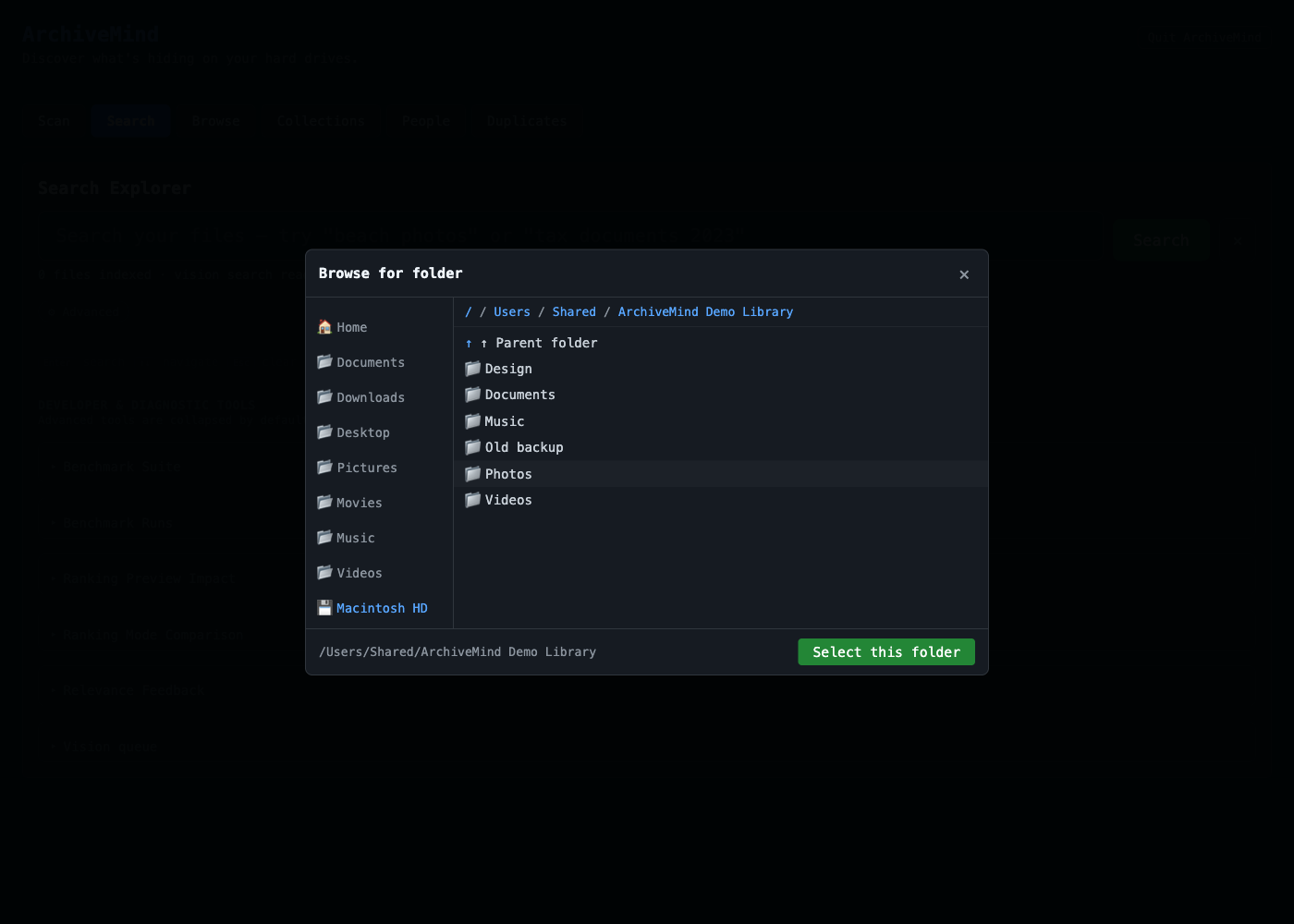
Browsing for the folder happens in a simple picker with shortcuts to common locations:
External drives
External drives make excellent repositories: catalog them once, and their contents stay searchable after you unplug them. ArchiveMind marks every result from a disconnected drive clearly and explains that the original file cannot be opened until the drive is reconnected. See Disconnected drives.