First launch
What happens when ArchiveMind starts
When you open ArchiveMind, it starts a small local server on your own computer and then shows its interface. On Windows and macOS, the interface opens in its own app-style window — no address bar, no bookmarks, its own taskbar or Dock presence — when a compatible browser (Chrome, Edge, or Brave) is installed. If only Safari is available on a Mac, the interface opens as a normal browser tab instead; everything works the same.
If no window appears after about 15 seconds, open a browser yourself and go to:
http://127.0.0.1:8765/
Local means local
The address 127.0.0.1 always means this computer. The interface is
a page served from your own machine to your own machine. Nothing is
uploaded anywhere — the server exists only so the app can draw its
interface. See Privacy.
Nothing happens without your click
On a fresh installation, the first screen asks where to keep your catalog — the database ArchiveMind builds its search index in. Nothing is created and nothing is scanned until you explicitly choose a location and point ArchiveMind at a folder to scan.
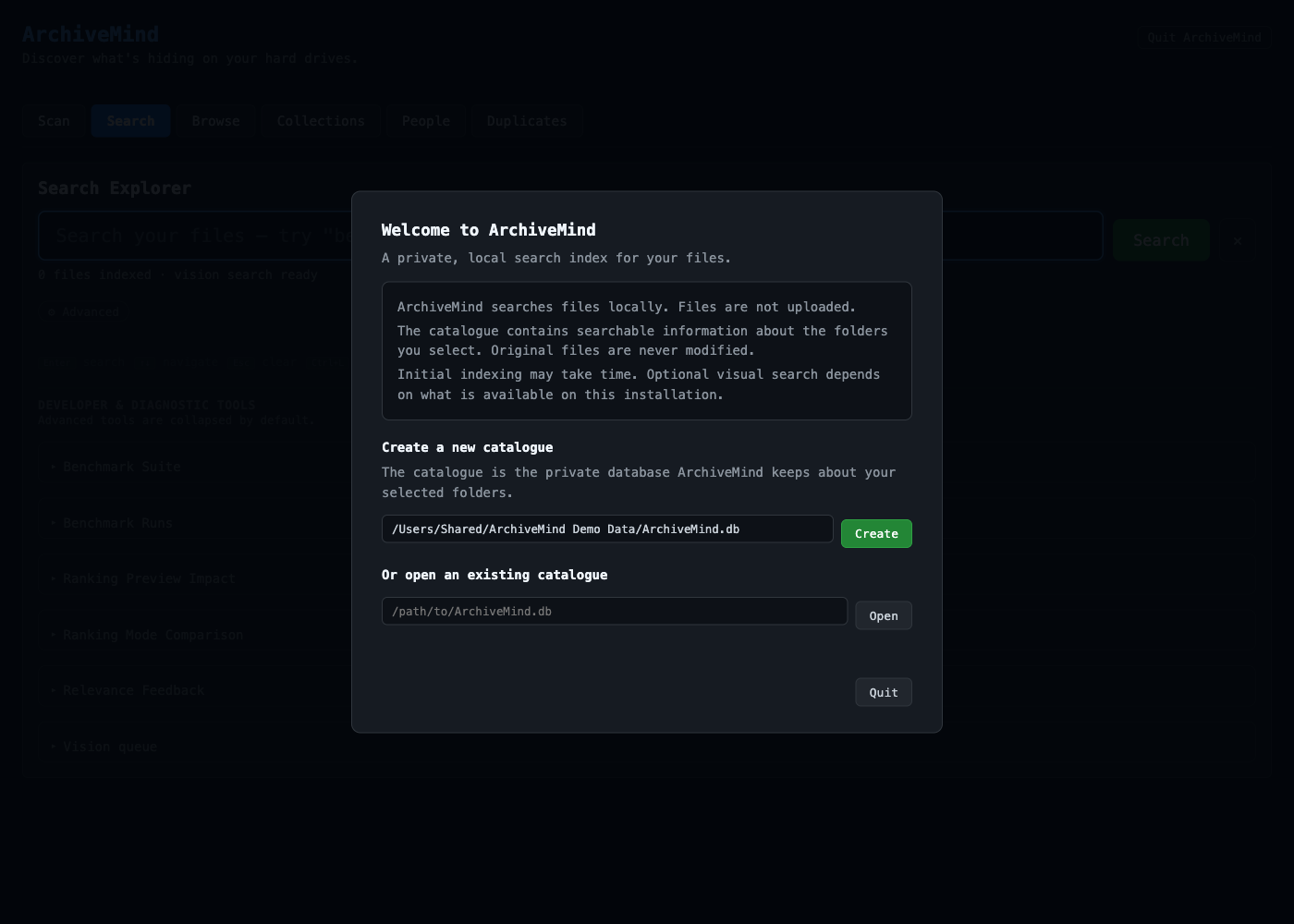
Once you choose, continue with Adding a repository.
Closing ArchiveMind safely
Click Quit ArchiveMind in the top-right corner of the page and confirm. The page tells you the app has stopped, and you can then close the window.
Closing the window is not quitting
Closing the window or browser tab does not stop ArchiveMind — the local server keeps running in the background until you quit it. Use the Quit ArchiveMind button. If the page is ever unreachable, use Activity Monitor (macOS) or Task Manager (Windows) as a fallback — see Restarting ArchiveMind safely.